 PearPass
How To Add An Authenticator Code
Store and generate TOTP authenticator codes for two-factor authentication directly in your PearPass vault on desktop, mobile, or the browser extension.
Follow the steps below to add an authenticator code to your PearPass vault.
On desktop and the browser extension, you need the secret key from the website, app, or service you are enabling two-factor authentication for. Retrieve it from that account's security or account settings page. On mobile, you can scan the QR code directly instead.
Sign in
Open PearPass on your computer and sign in with your master password.

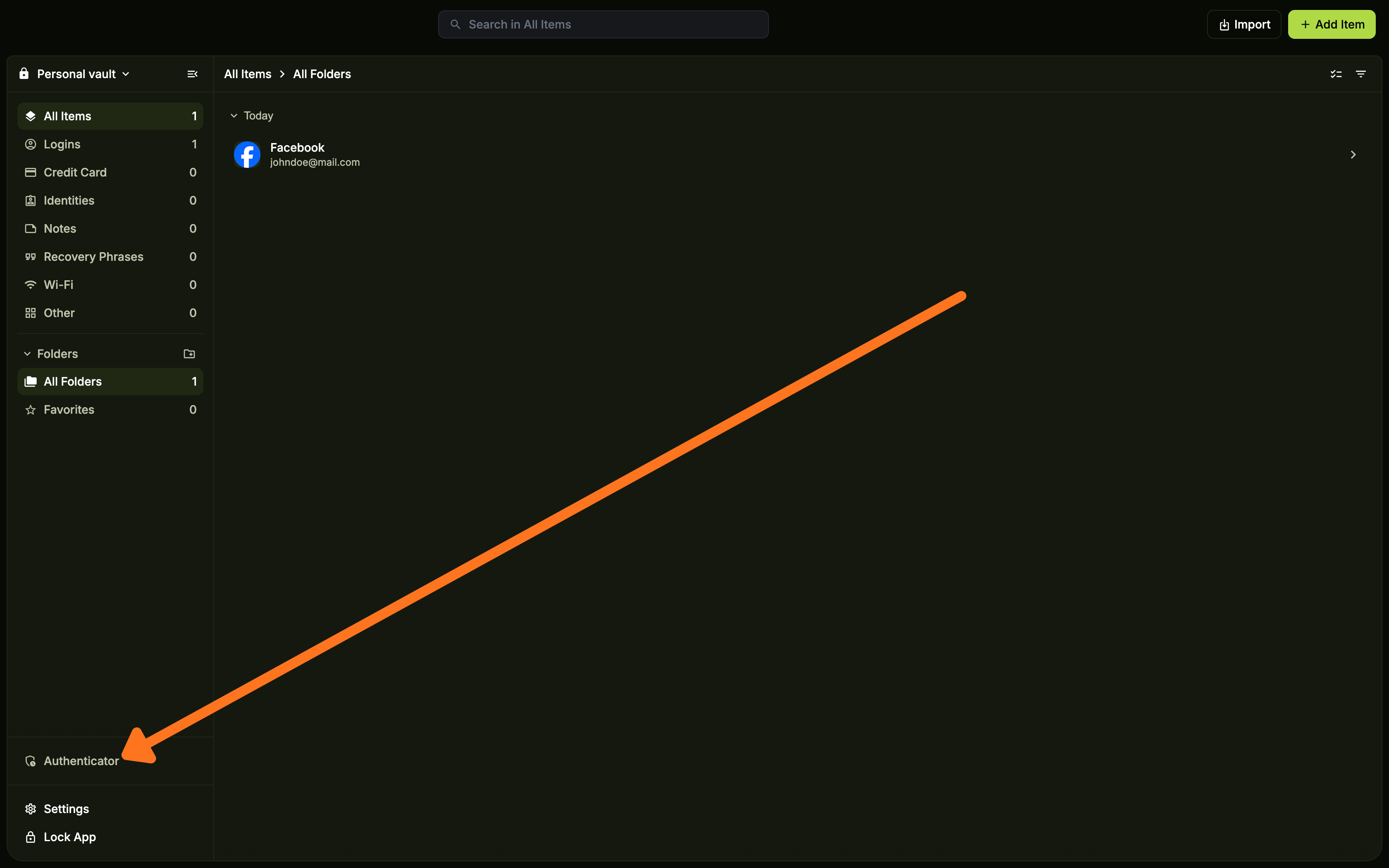
Open the Authenticator section
Click Authenticator in the left sidebar.
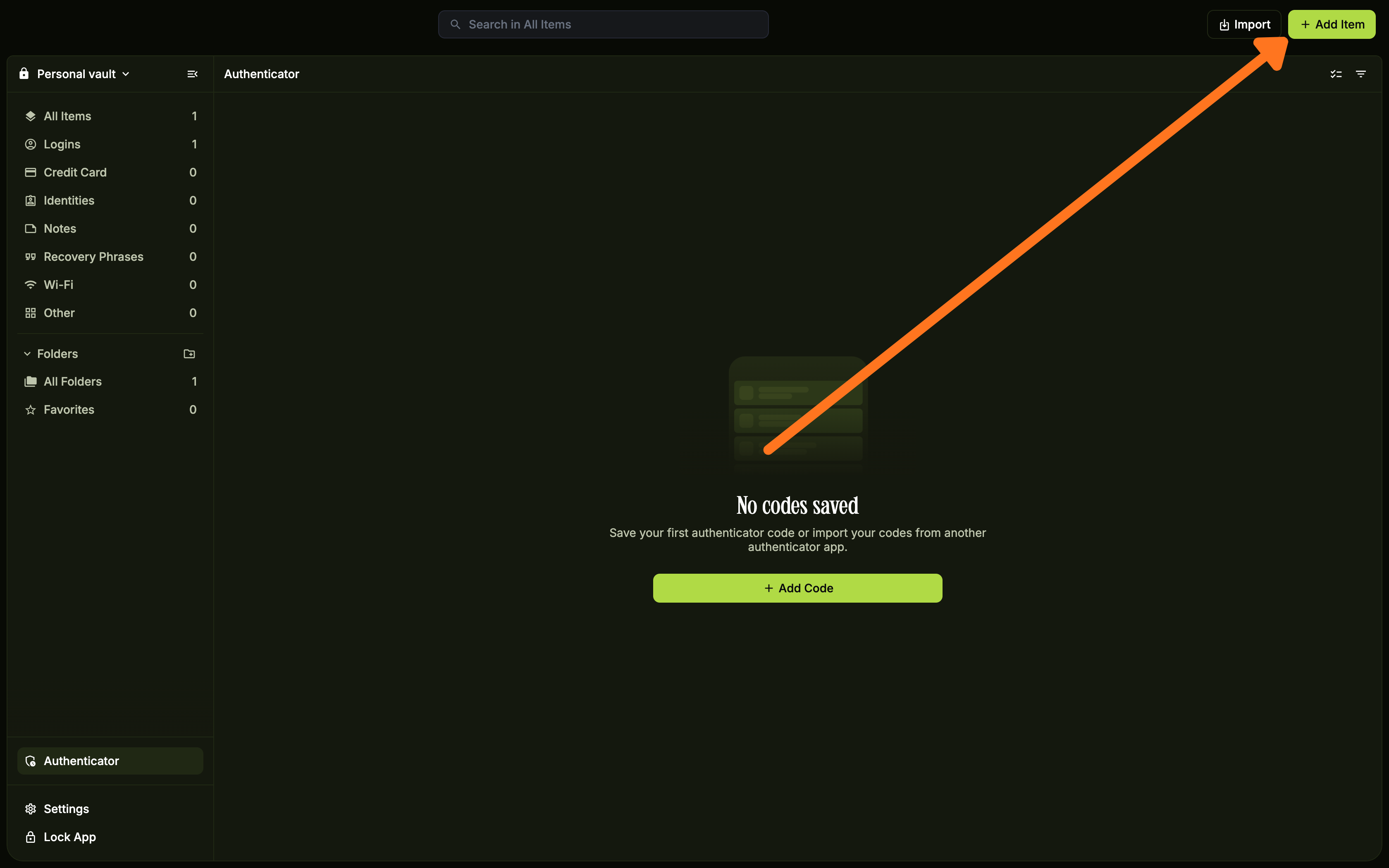
Add a new code
Click + Add Item in the top right corner.
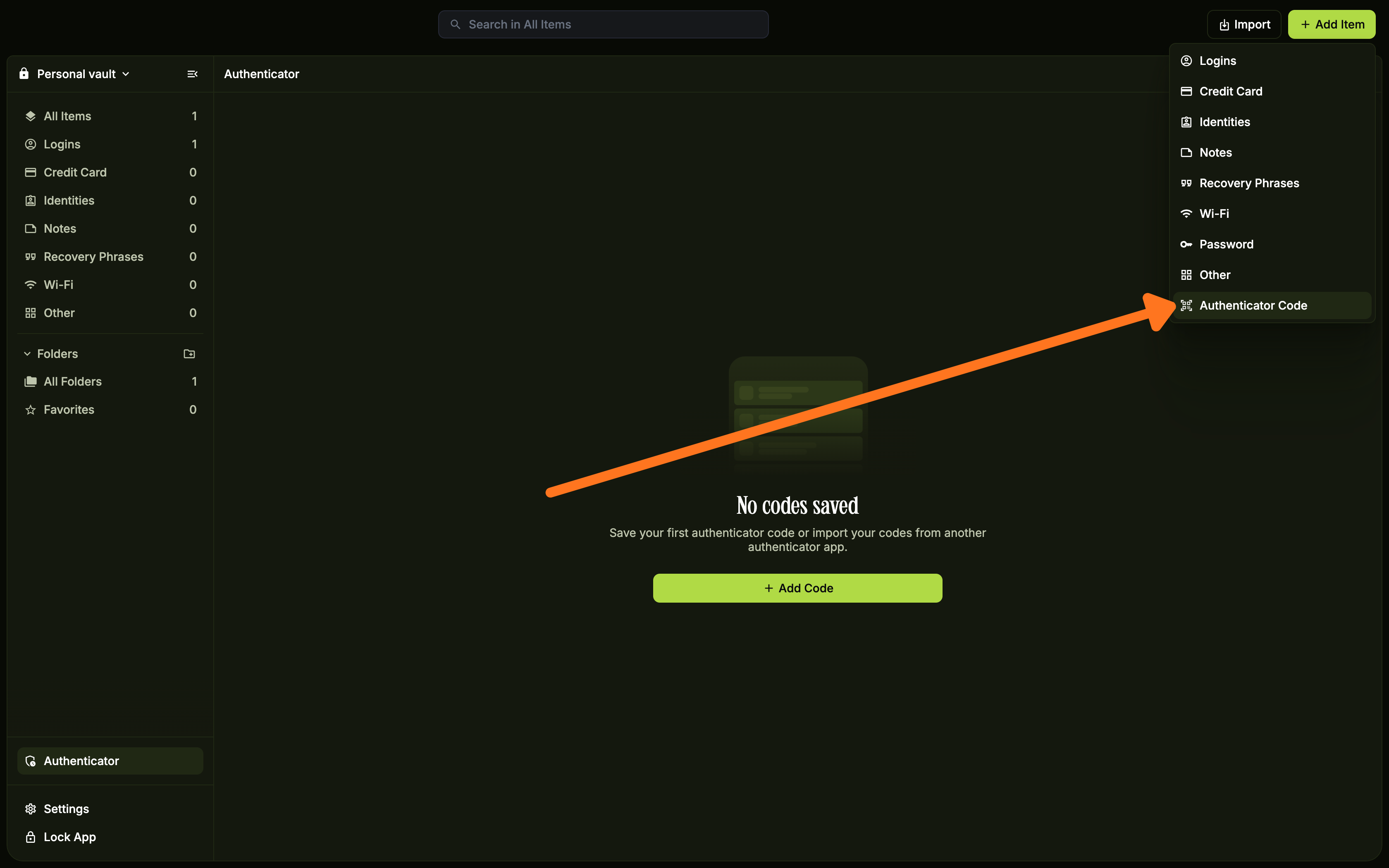
Select Authenticator Code
Click Authenticator Code from the dropdown menu.
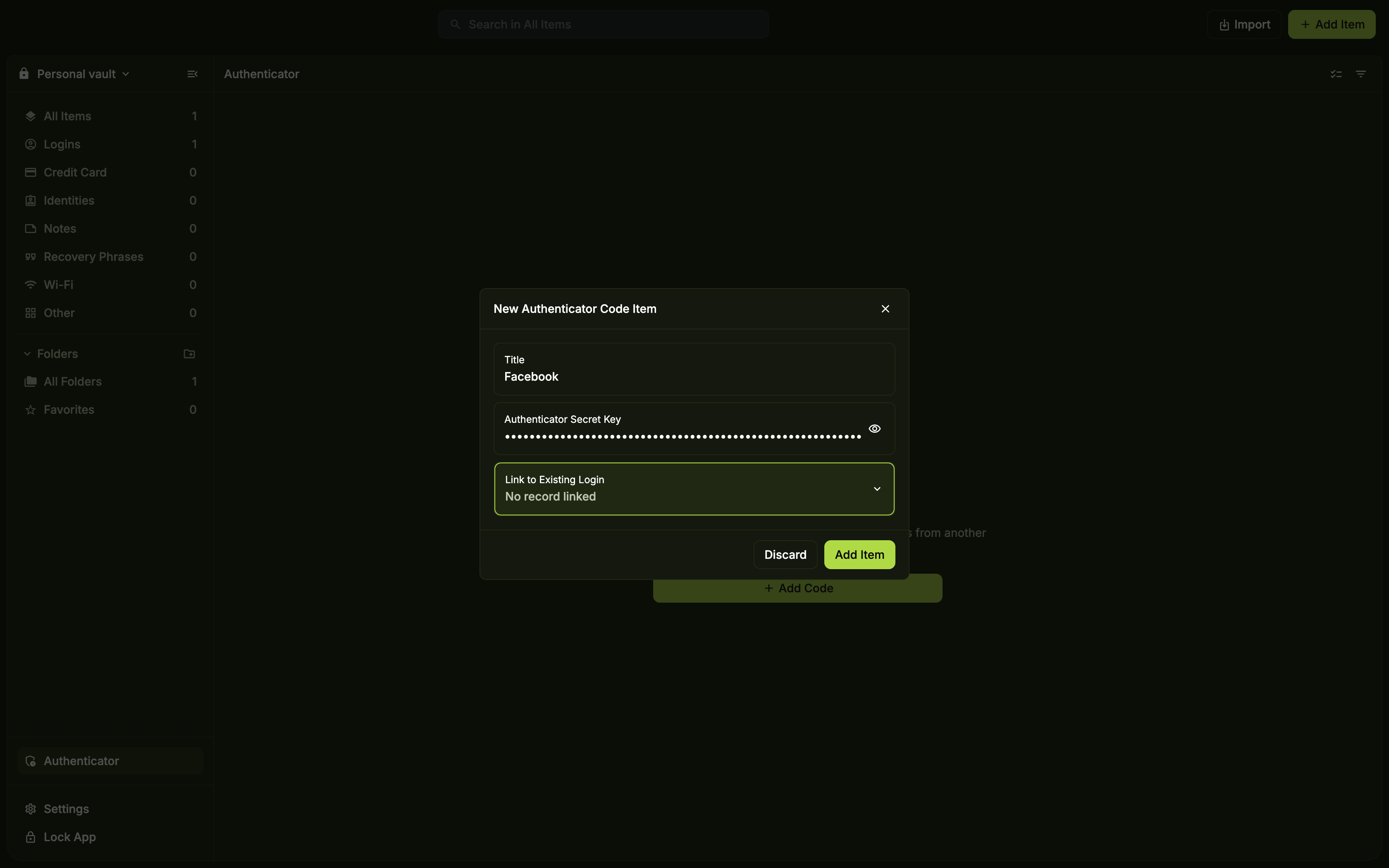
Enter the details
Fill in the Title and paste your Authenticator Secret Key. To link this code to an existing login in your vault, select it from the Link to Existing Login dropdown.
Save
Click Add Item.
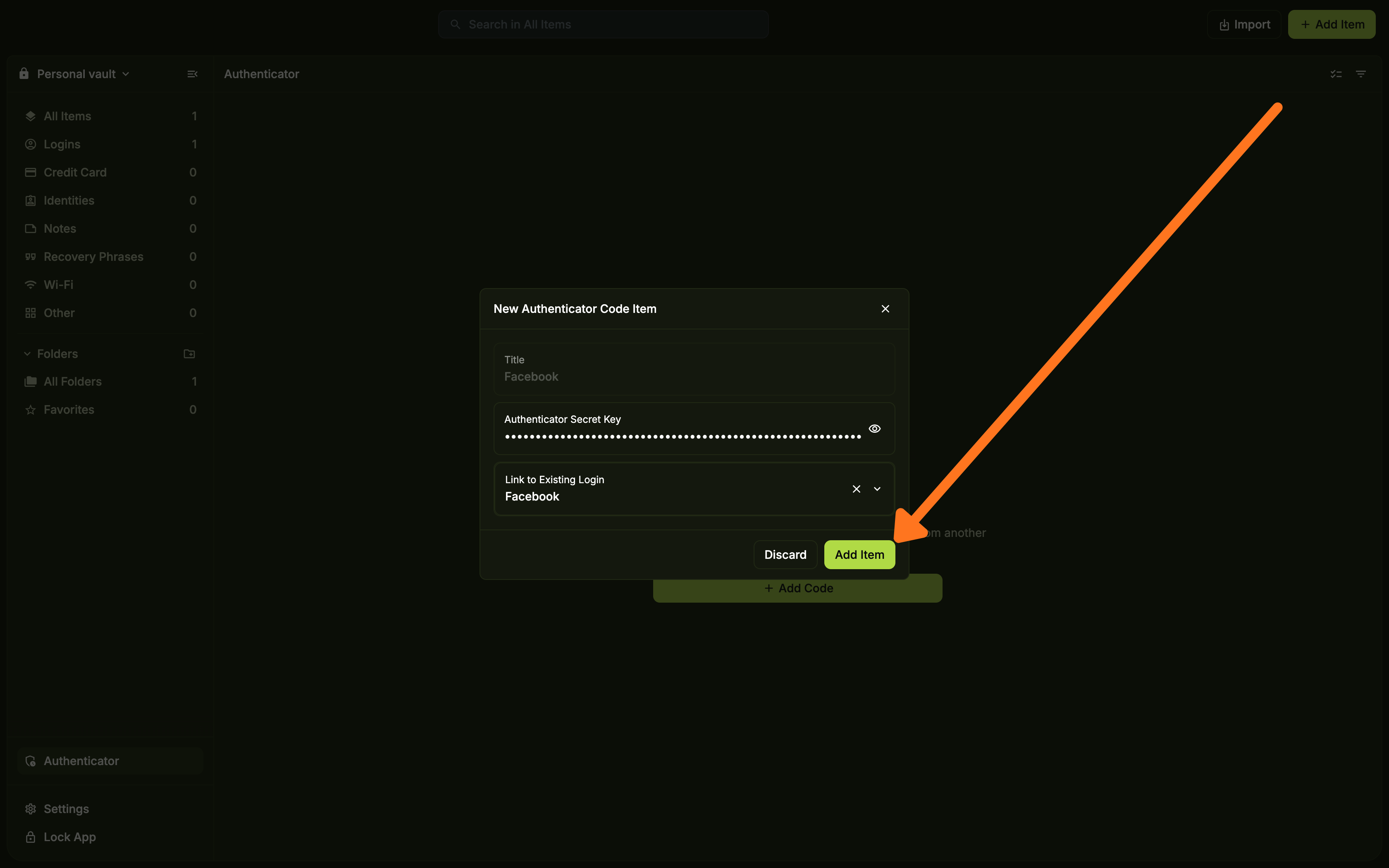
Your code is ready
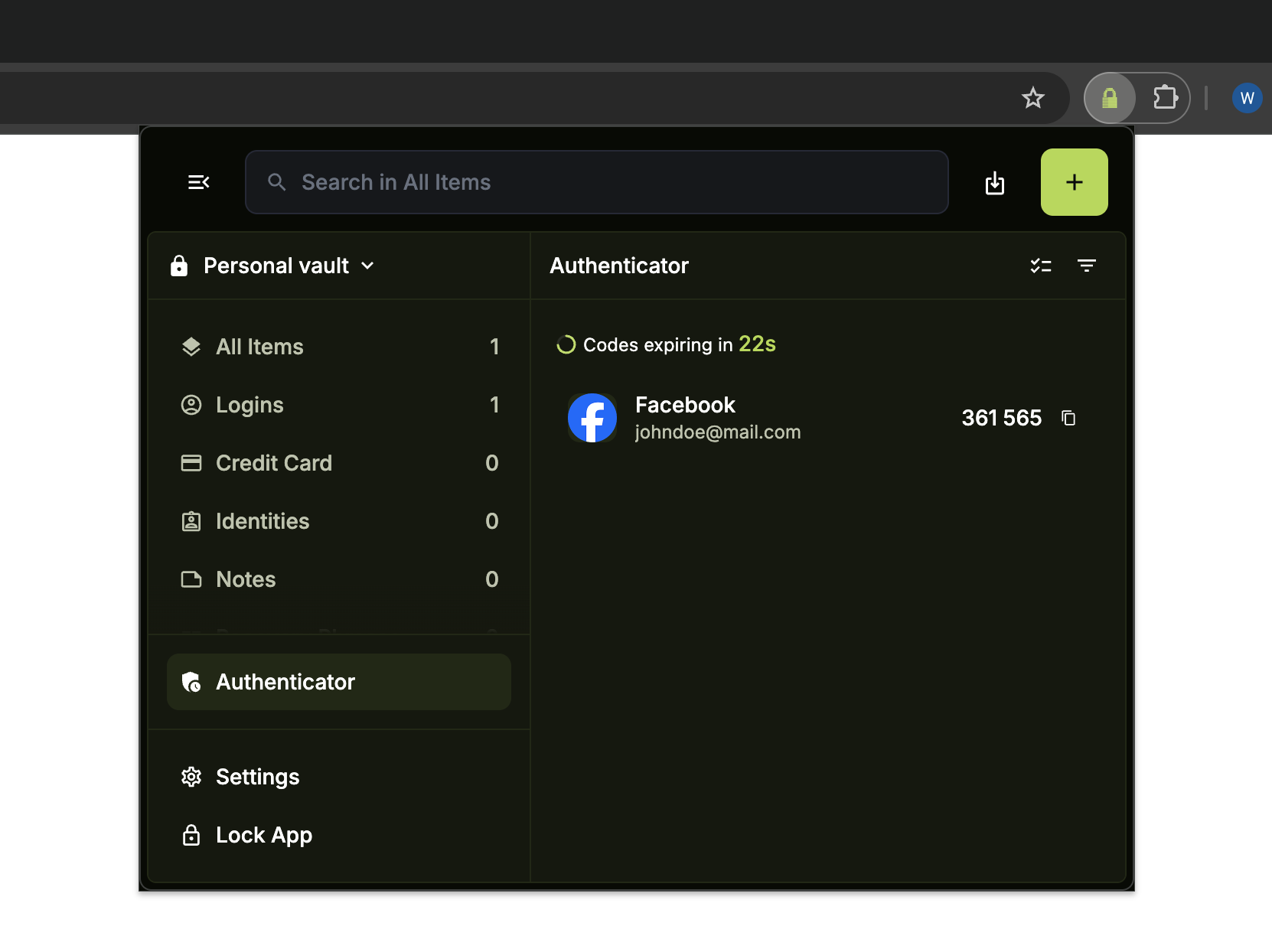
PearPass now displays the live one-time code in the Authenticator section with a countdown timer showing when it refreshes.

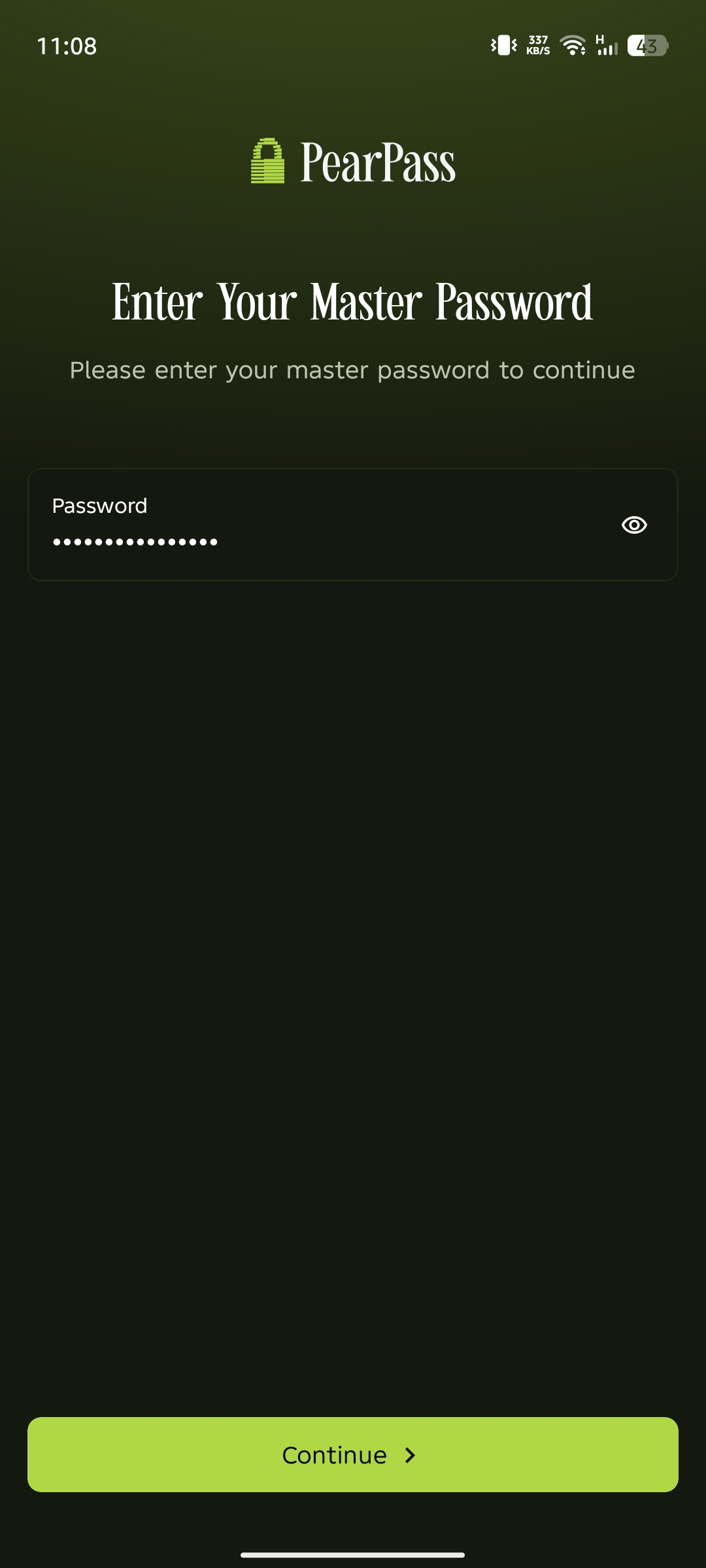
Sign in
Open PearPass on your mobile device and sign in with your master password.
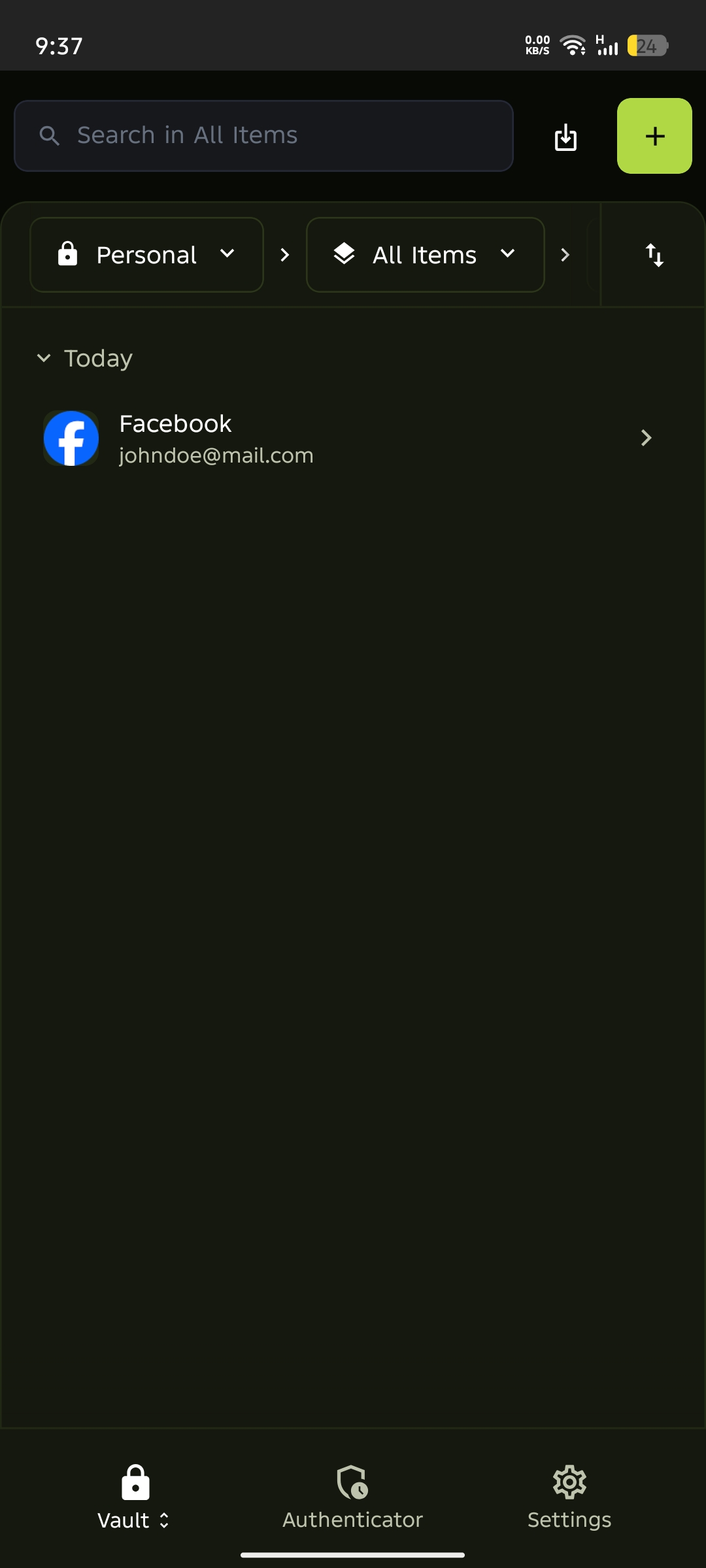
Open the Authenticator section
Tap Authenticator in the bottom navigation bar.
Add a new code
Tap + in the top right corner.
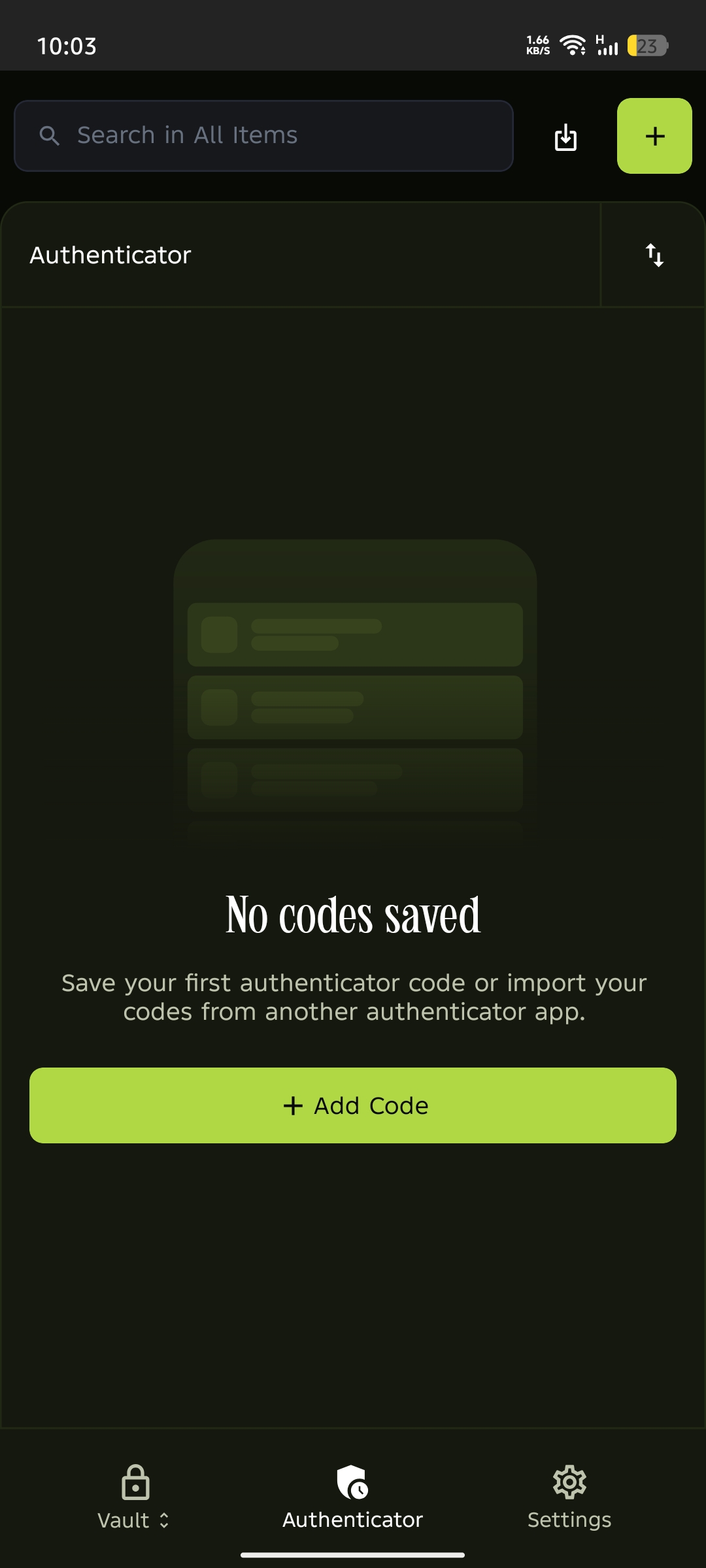
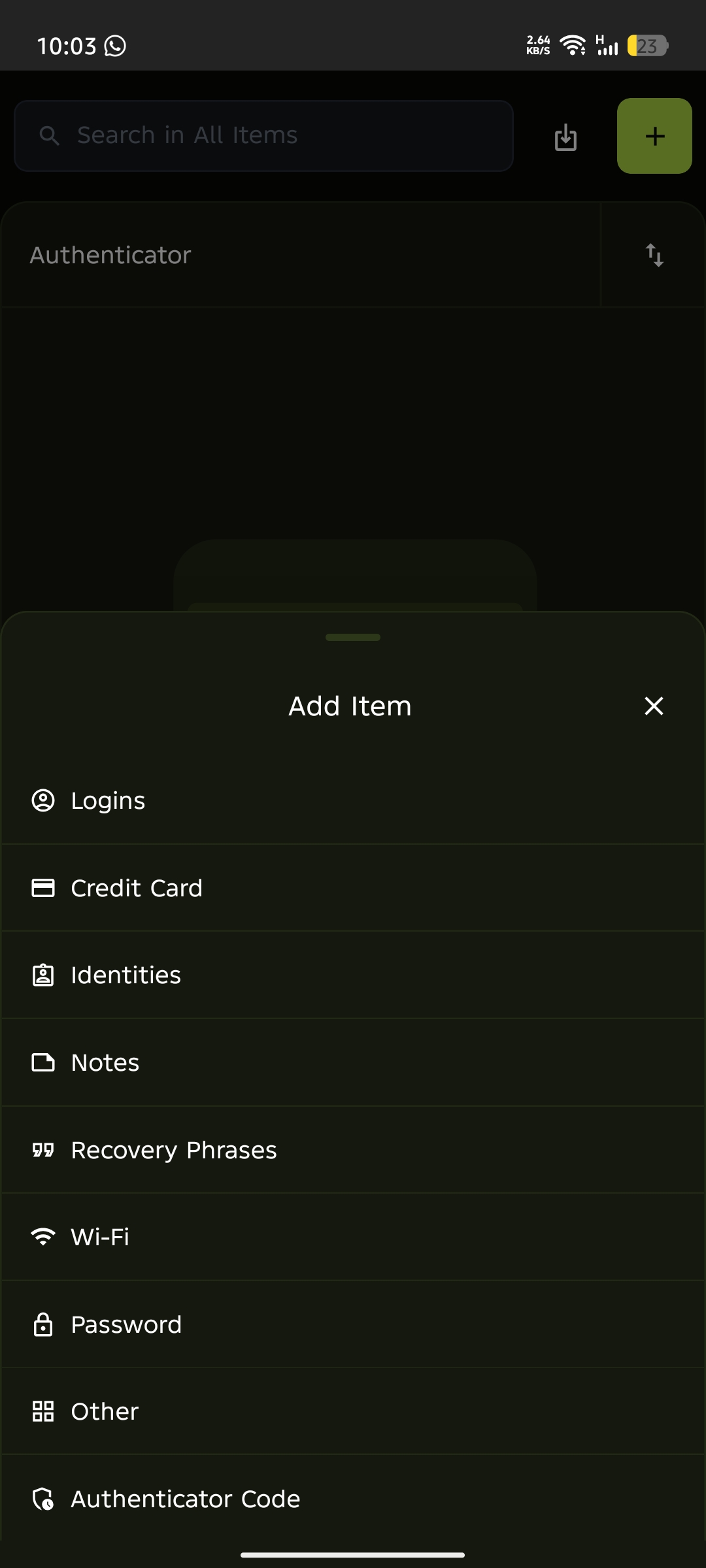
Select Authenticator Code
Tap Authenticator Code from the Add Item menu.
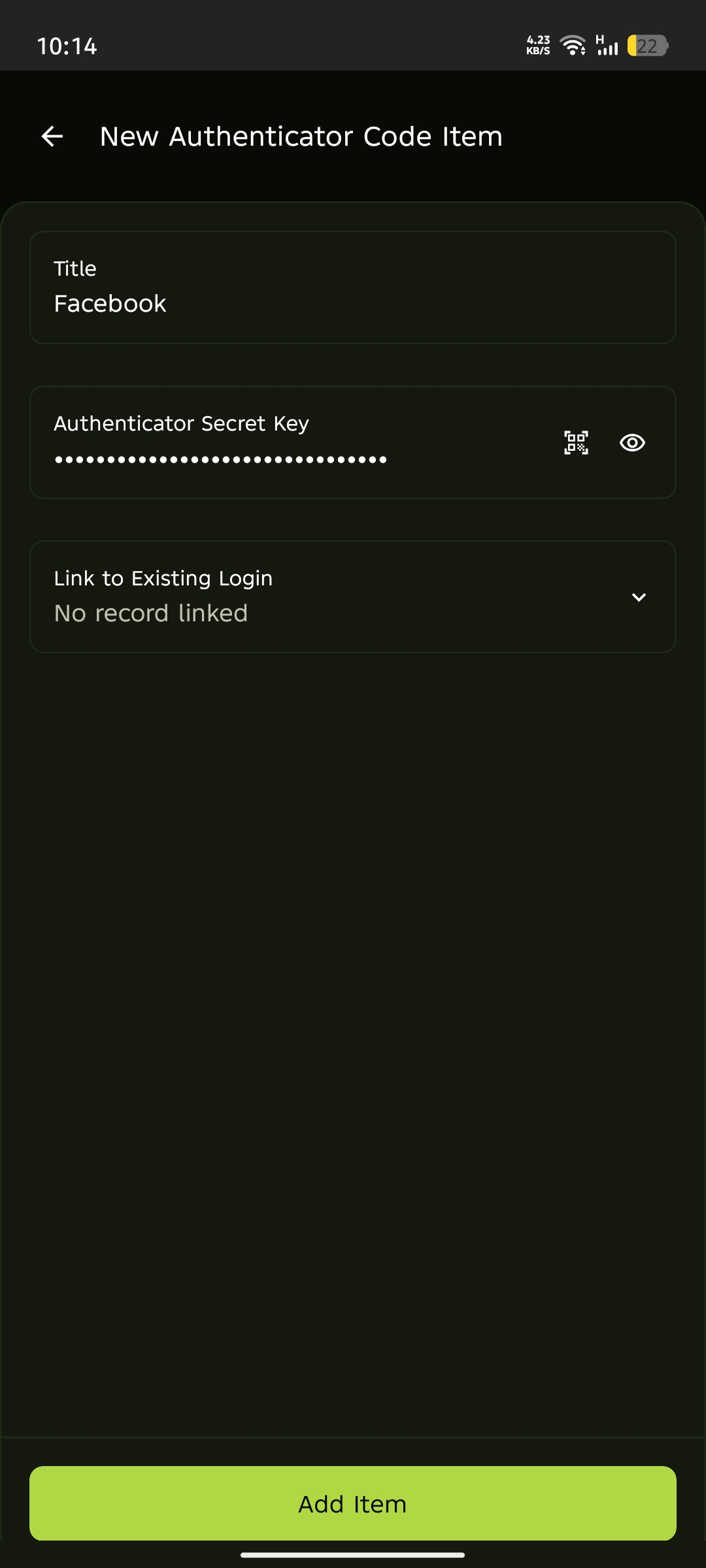
Enter the details
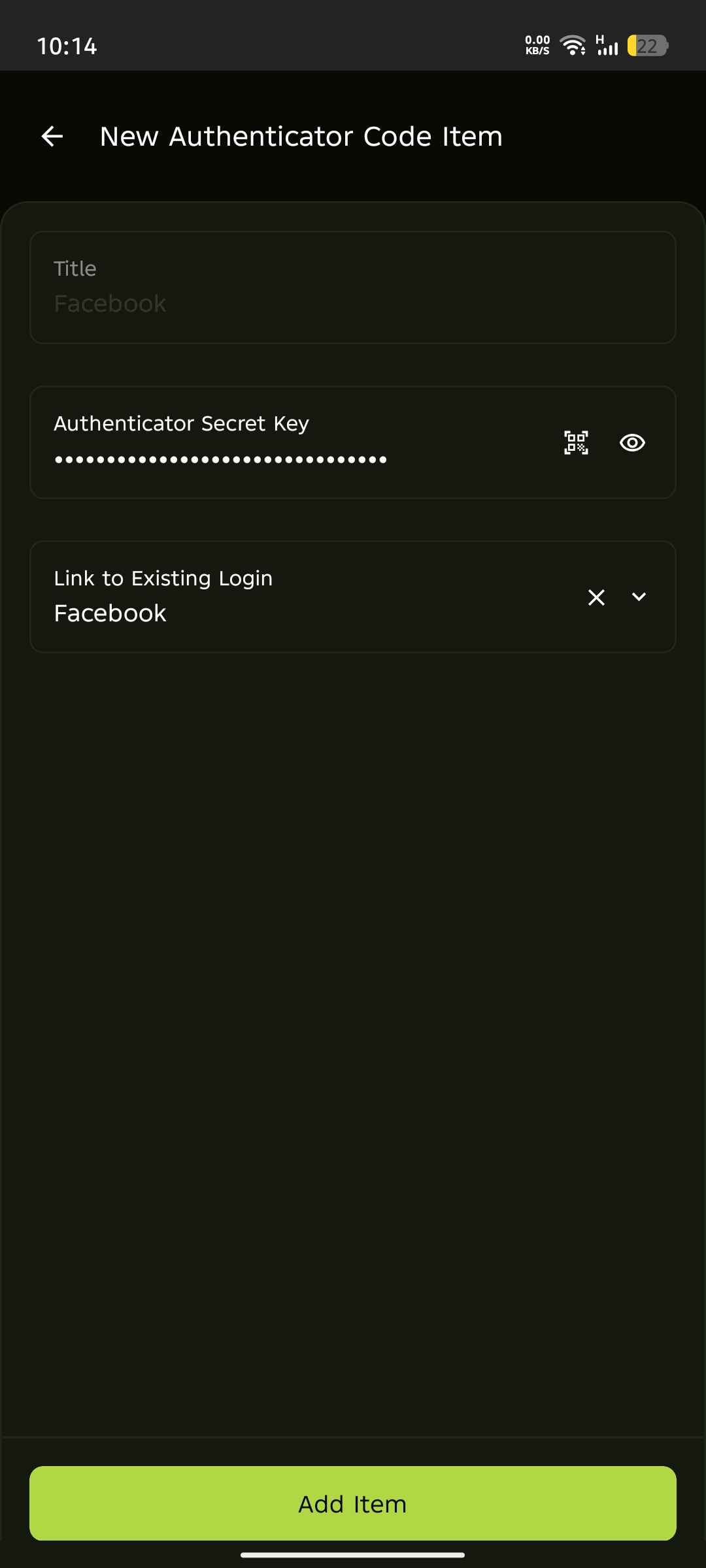
Fill in the Title and paste your Authenticator Secret Key, or tap the QR code icon to scan the code directly. To link this code to an existing login in your vault, select it from the Link to Existing Login dropdown.
Save
Tap Add Item.
Your code is ready
PearPass now displays the live one-time code in the Authenticator section with a countdown timer showing when it refreshes.
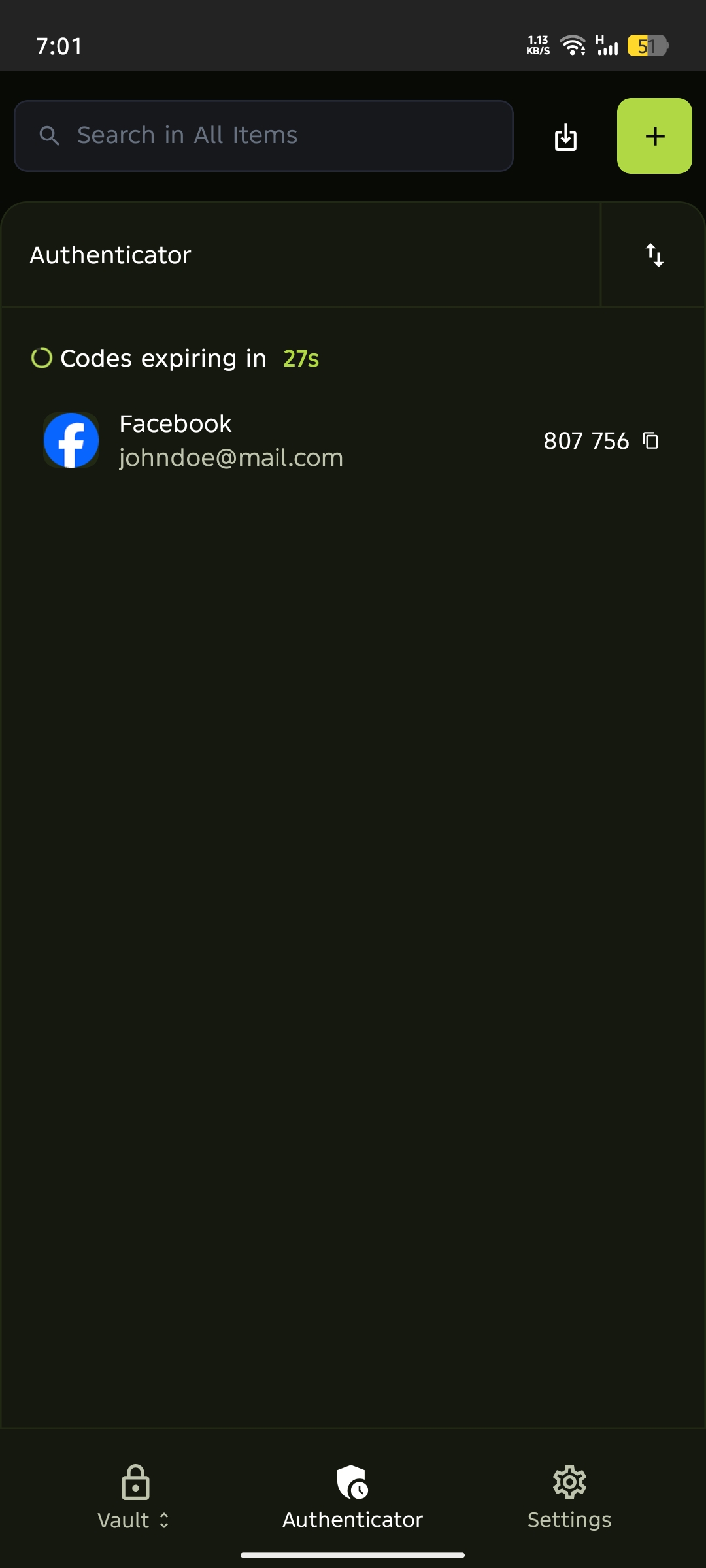
Open the extension
In your browser toolbar, click the PearPass icon.
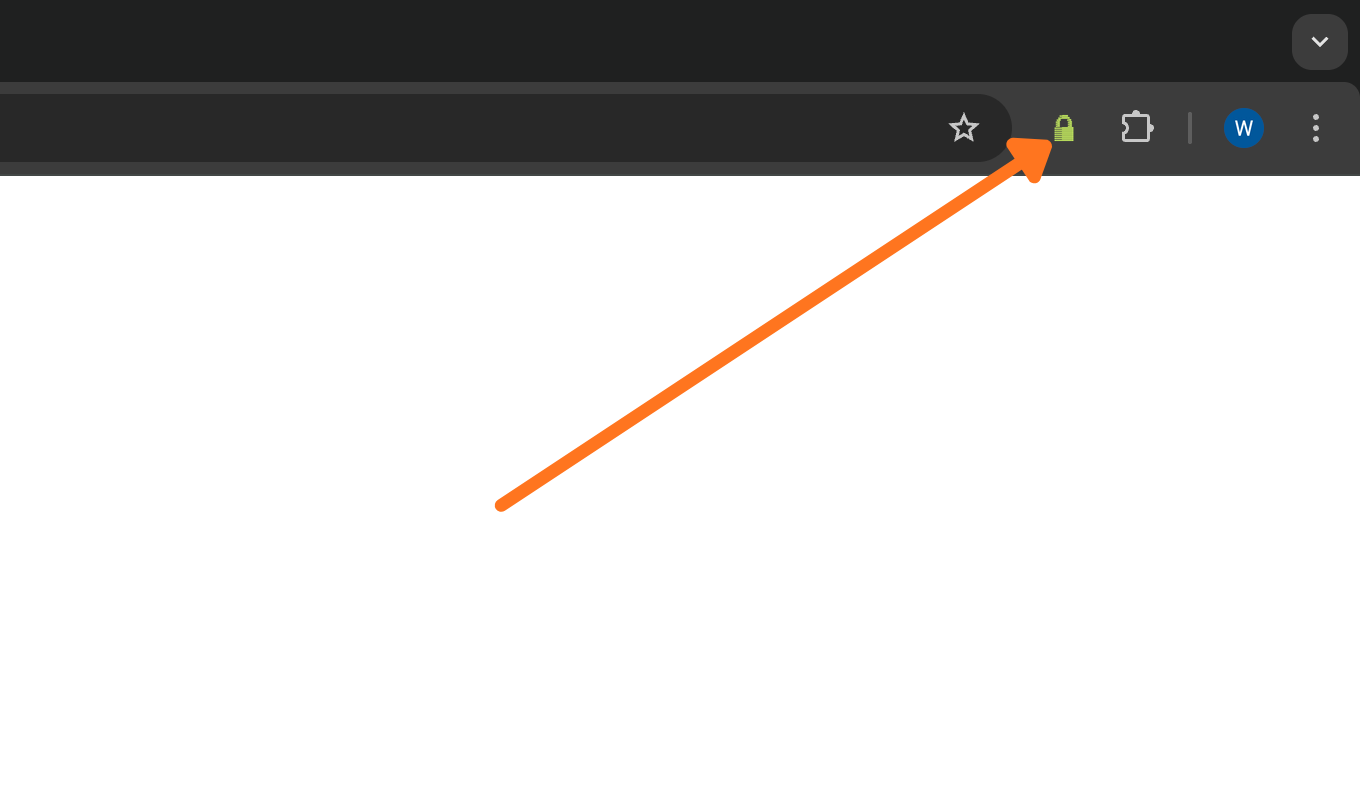
Sign in
Sign in with your master password.
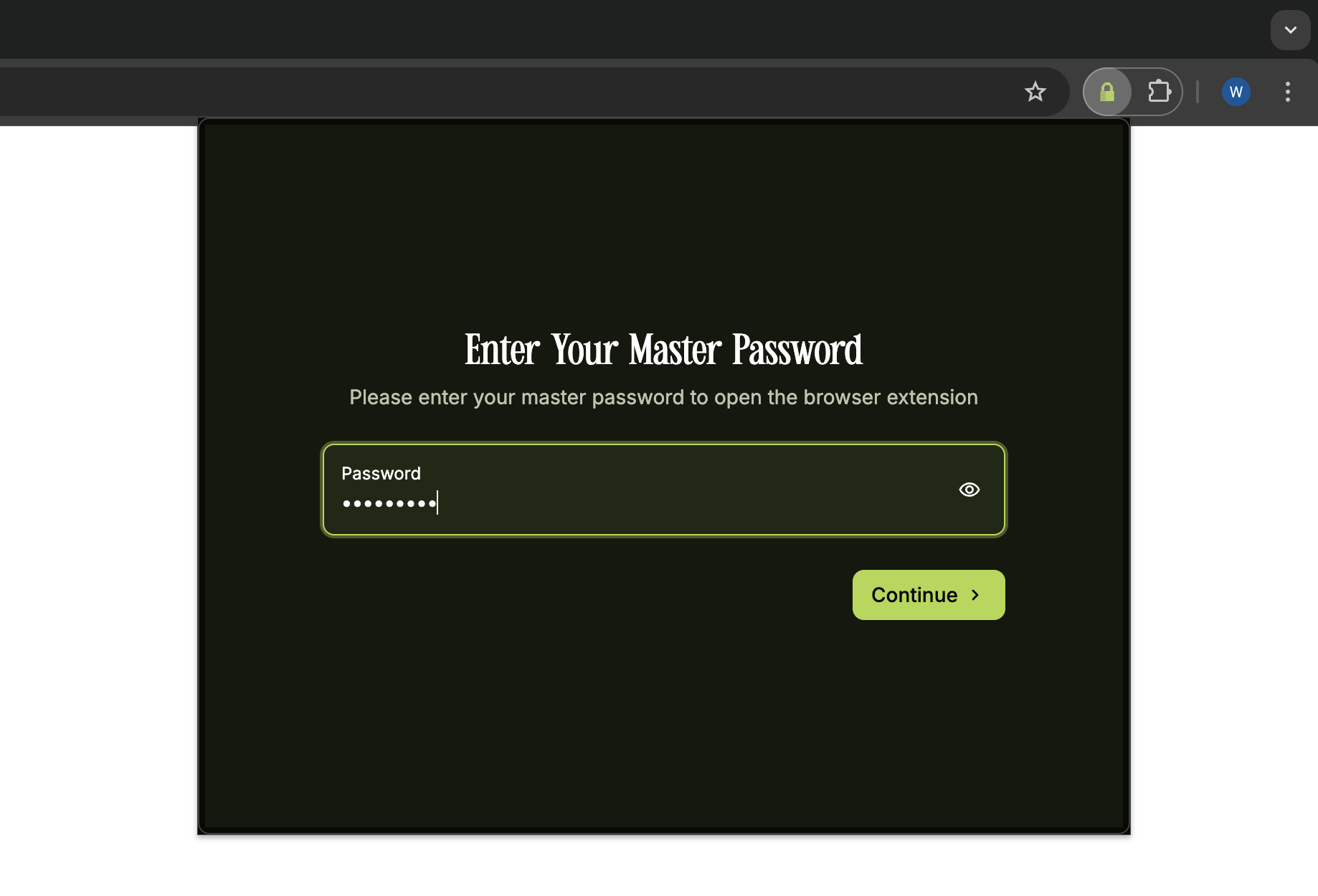
Open the Authenticator section
Click Authenticator in the left sidebar.
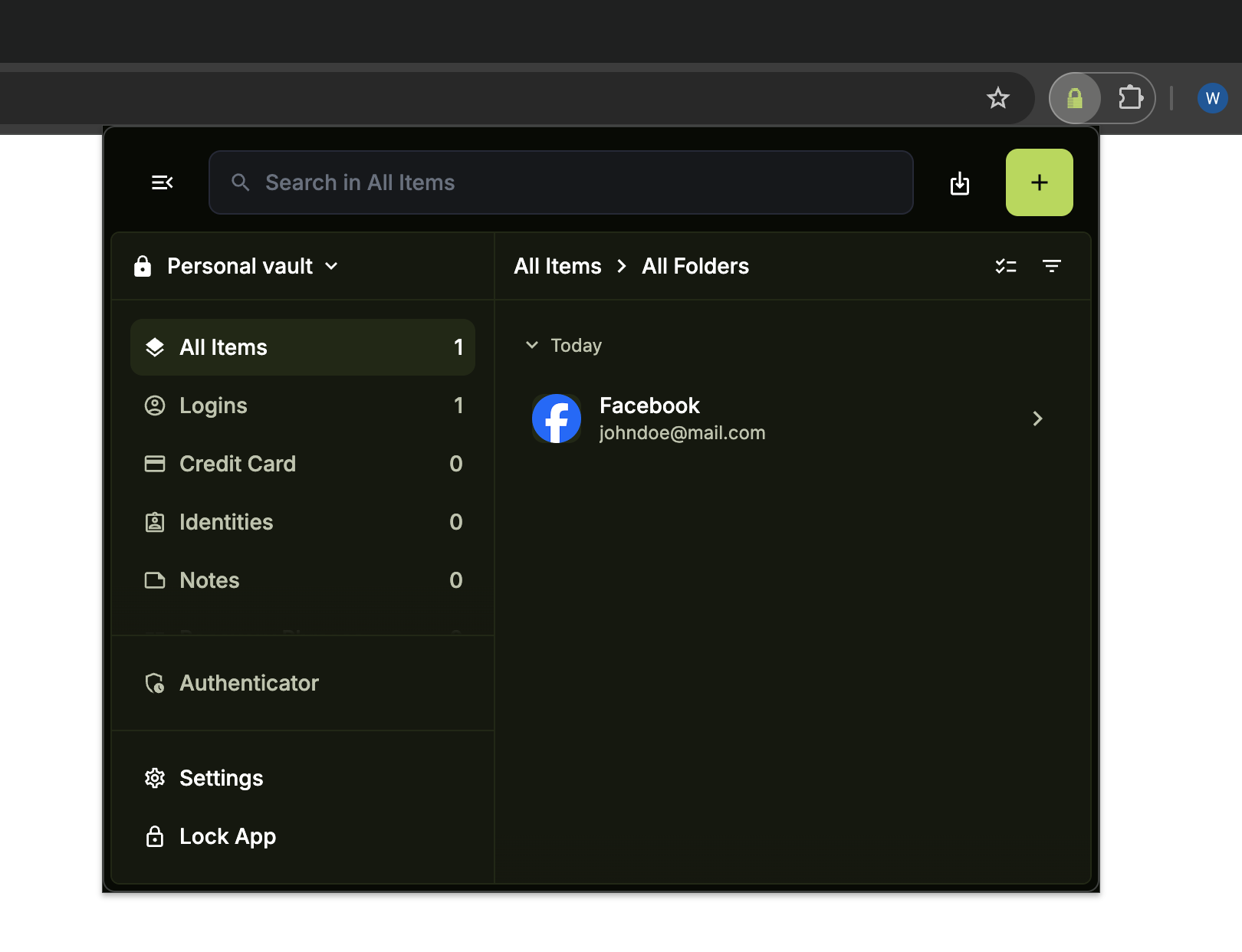
Add a new code
Click + in the top right corner.
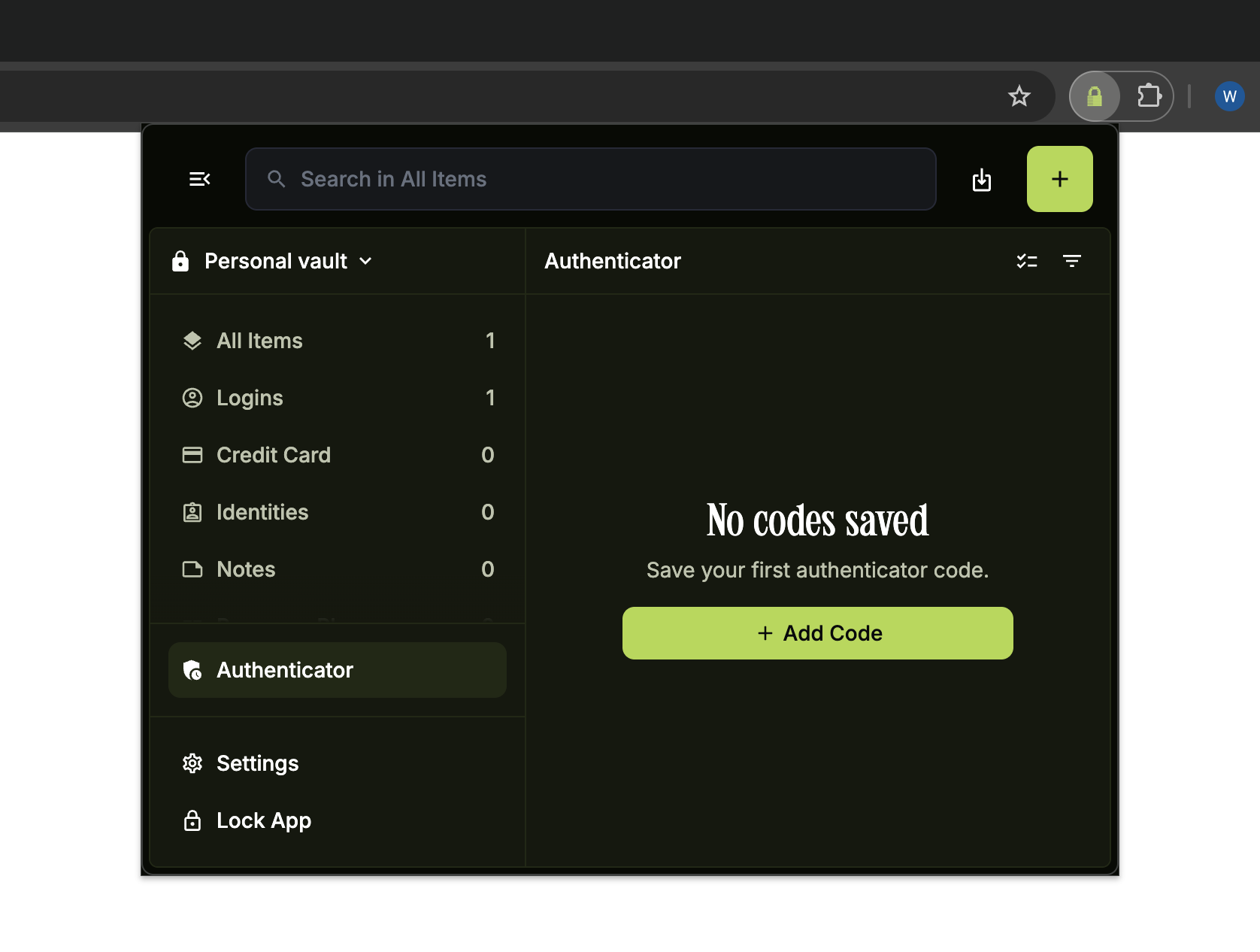
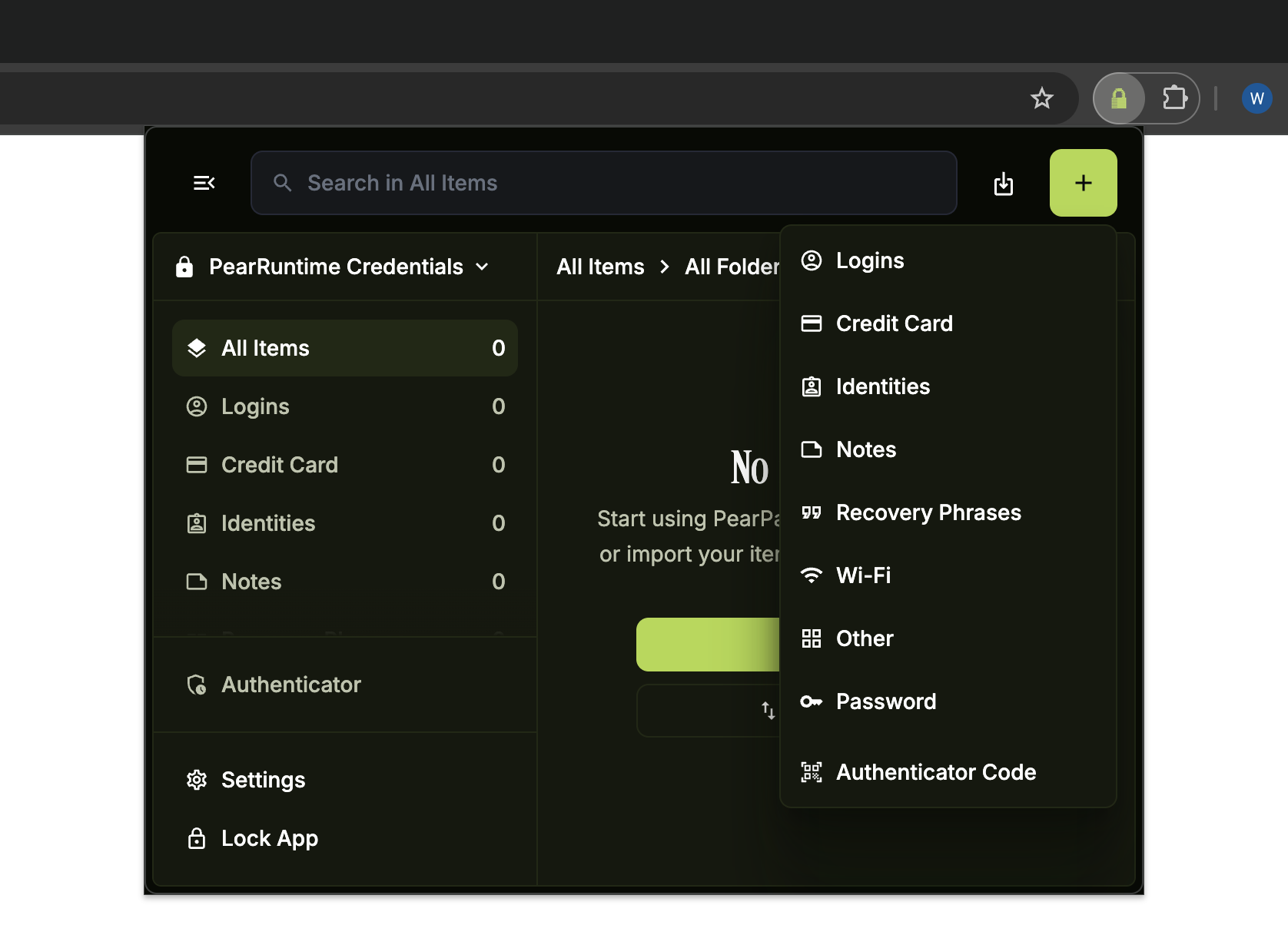
Select Authenticator Code
Click Authenticator Code from the dropdown menu.
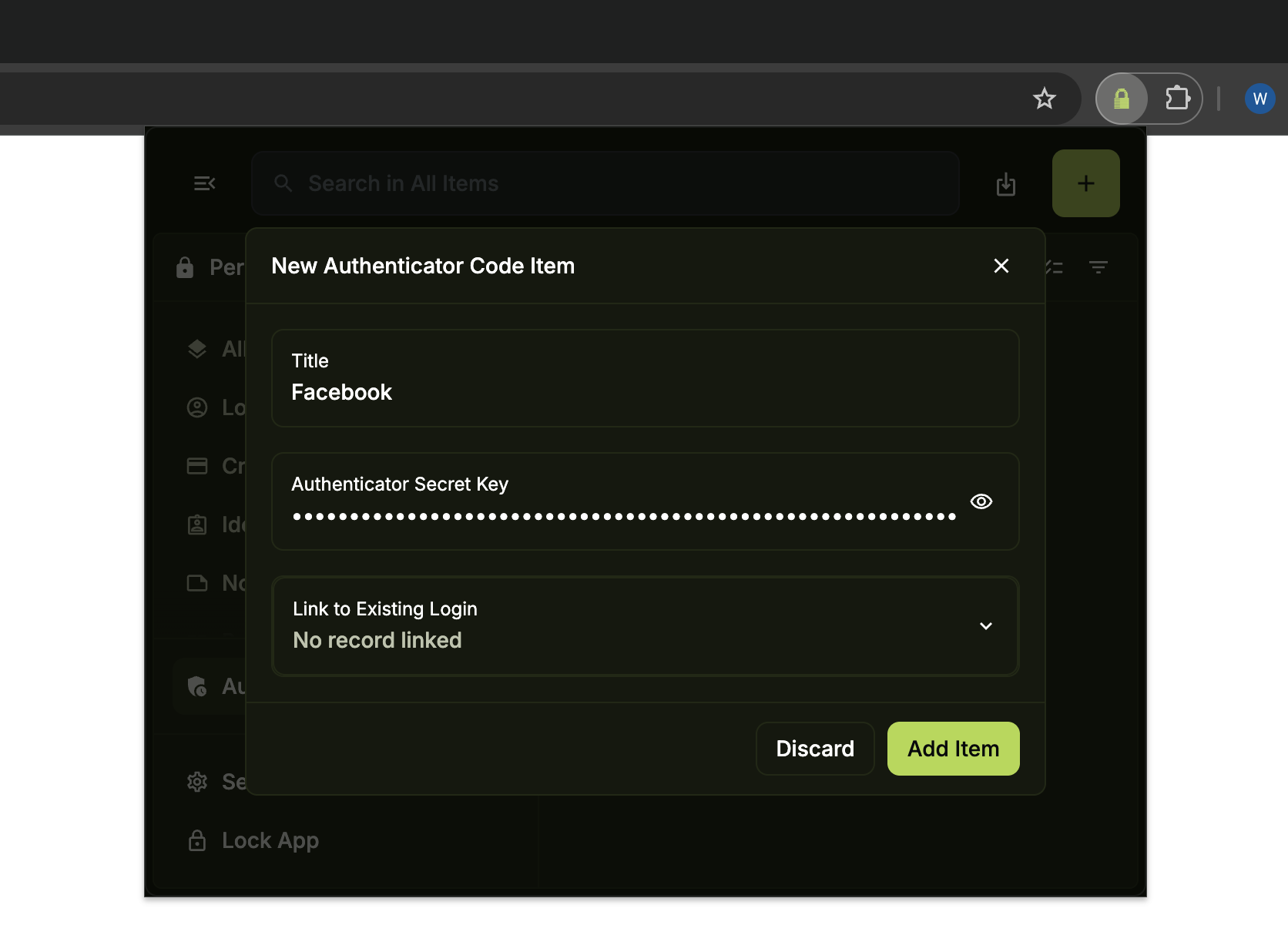
Enter the details
Fill in the Title and paste your Authenticator Secret Key. To link this code to an existing login in your vault, select it from the Link to Existing Login dropdown.
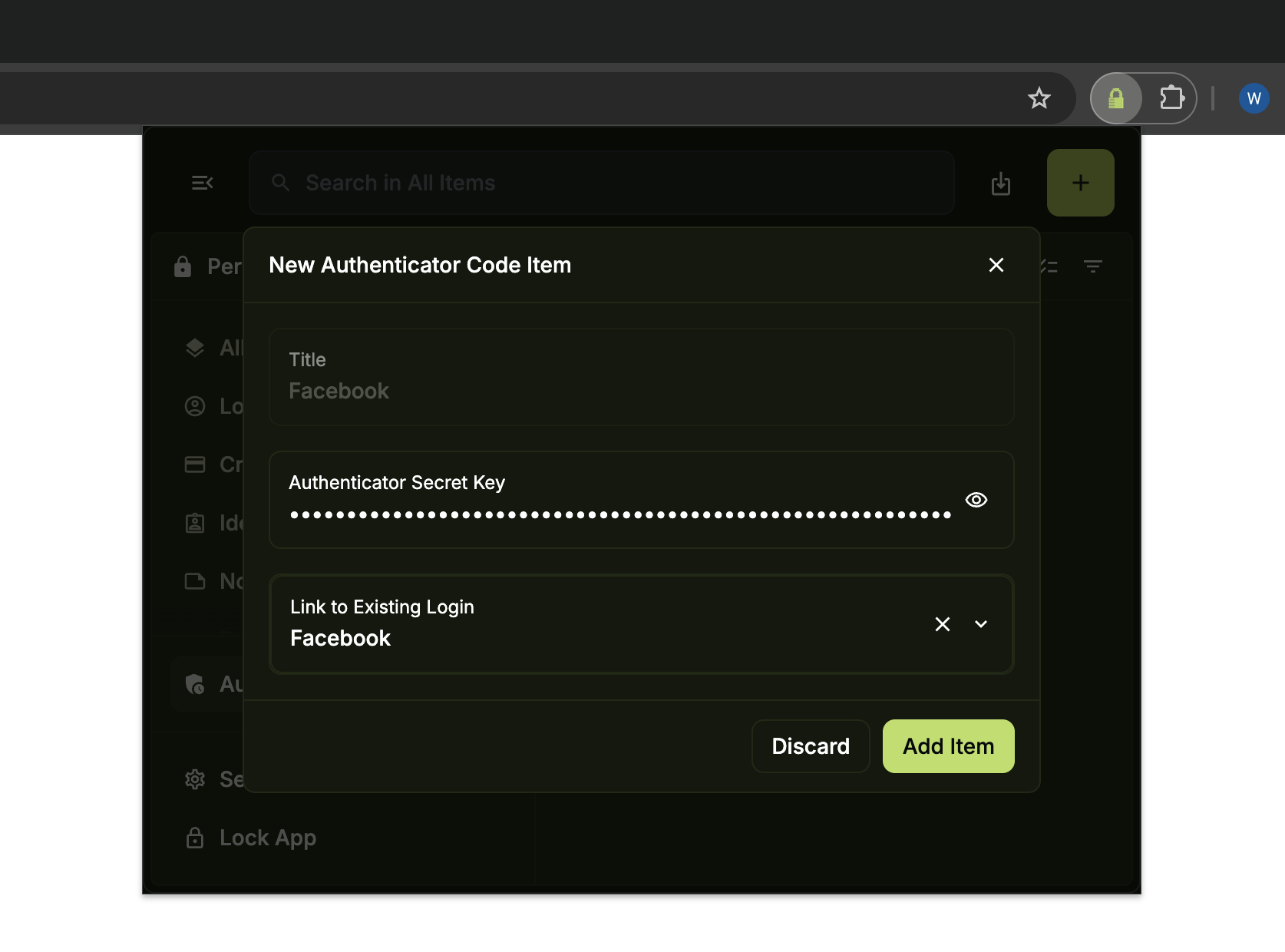
Save
Click Add Item.
Your code is ready
PearPass now displays the live one-time code in the Authenticator section with a countdown timer showing when it refreshes.
Accessing your code from a login item
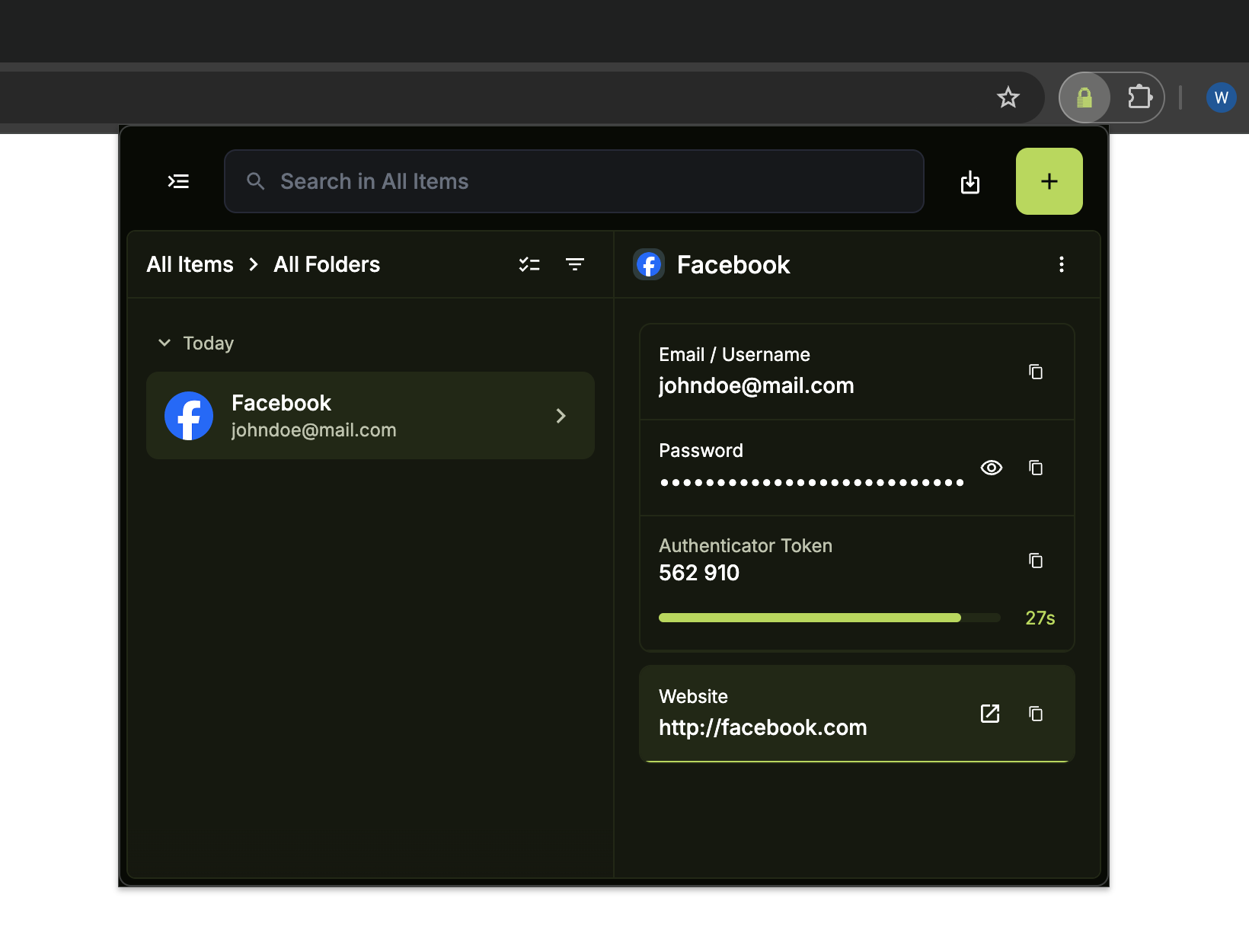
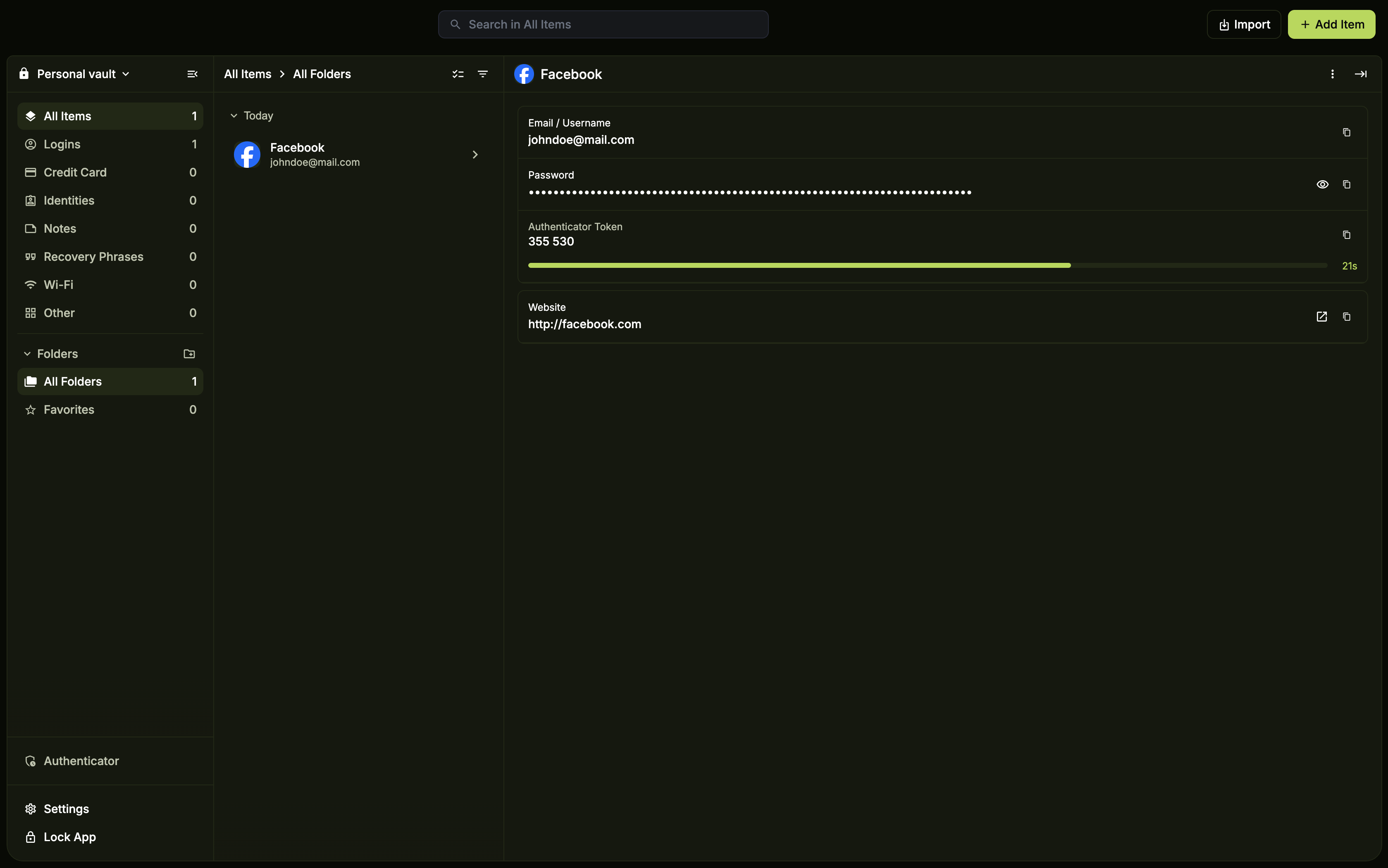
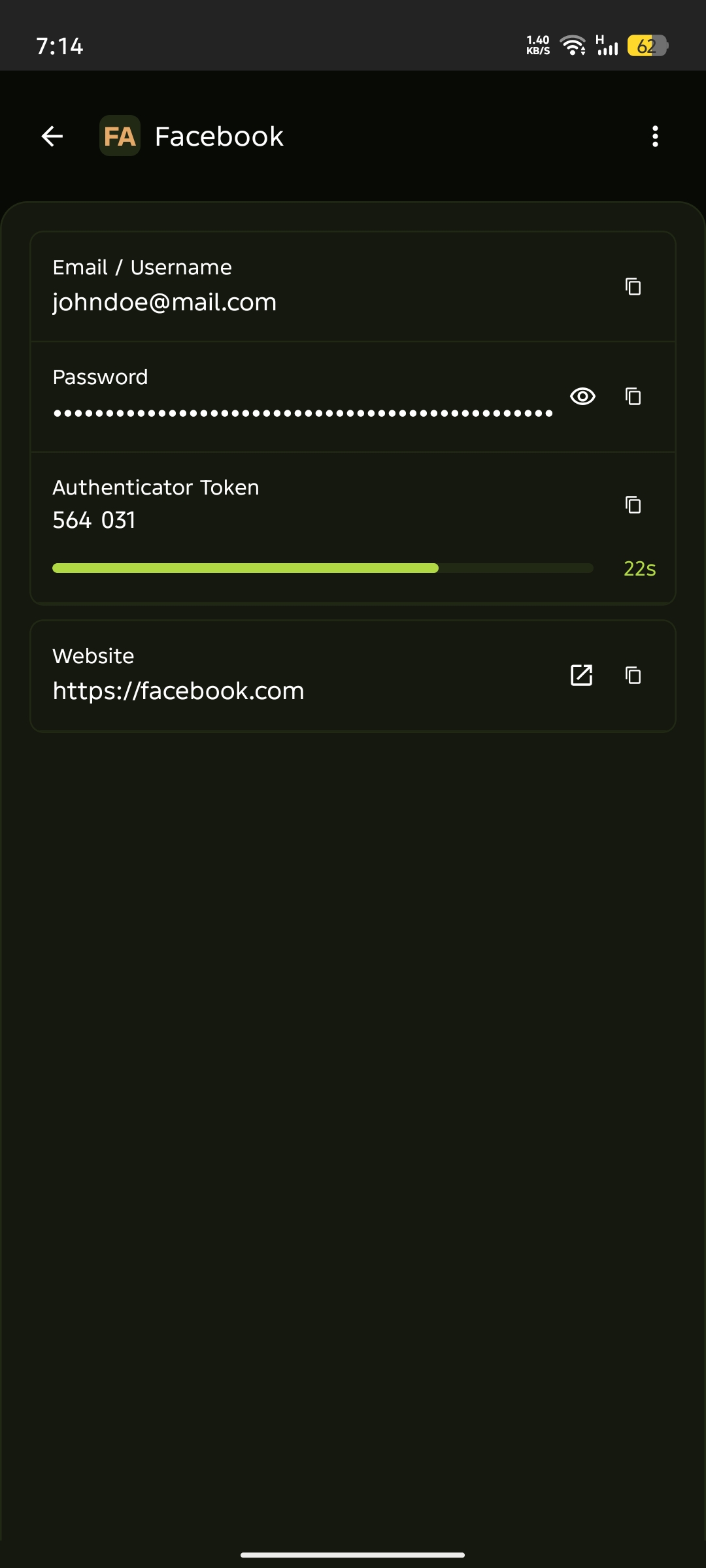
If you linked the authenticator code to a login item, the code also appears inside that login item, alongside the username, password, and any other details stored for that login item. This lets you copy the one-time code and fill in the rest of your credentials without switching sections.
Open the linked login item. The current one-time code appears in the Authenticator Token field within the item.
Open the linked login item. The current one-time code appears in the Authenticator Token field within the item.
Open the linked login item. The current one-time code appears in the Authenticator Token field within the item.